
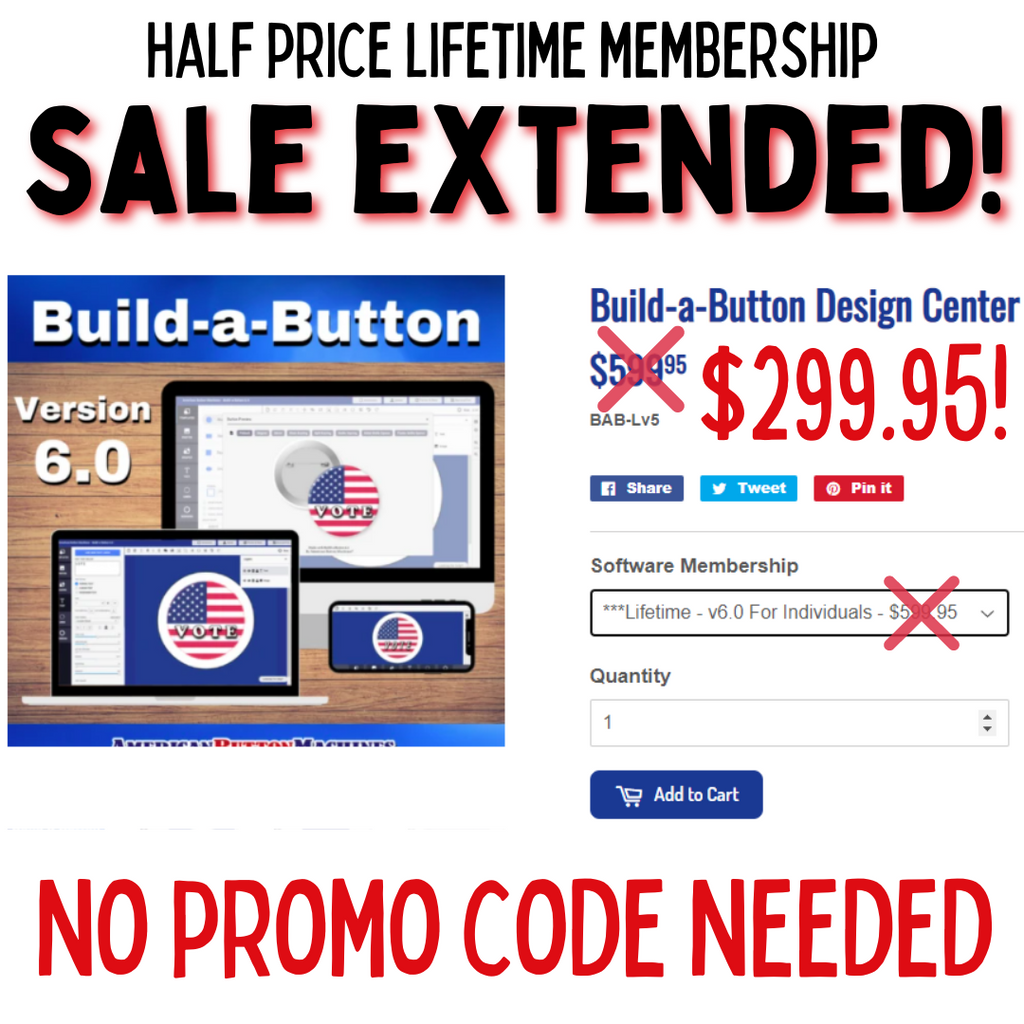
A Build-a-Button membership unlocks the full online design studio — the easiest way to design professional pinback buttons without learning graphic design software. Insert text like a word processor, upload your own images, arrange everything in Photoshop-style layers, and let Build-a-Button size every design perfectly for your button maker.
Every size and shape we sell is built in, so your designs come out perfectly sized every time. Not a member yet? Try the free demo first and explore every tool before you buy.
Membership Plans — Longer Terms, Bigger Savings
Every plan below unlocks the complete Build-a-Button design studio. The only difference is how long your access lasts — and the longer the term, the less you pay per month.
| Plan | Price | Your Savings |
|---|---|---|
| 1 Week | $12.95 | — |
| 1 Month | $27.44 | — |
| 3 Months | $37.44 | Save 54% |
| 6 Months | $73.69 | Save 55% |
| 12 Months | $103.69 | Save 69% |
| Lifetime | $299.95 | Best Value |
Savings compared to paying month by month at the 1-month rate. The Lifetime plan costs less than 11 months at the monthly rate — after that, every design you ever make is free. Memberships are renewed by you; nothing bills automatically.
Buying a complete Button Making Kit? A free 3-month Build-a-Button membership is already included with every kit — that's a $37.44 value in the box. Compare kits on our button maker kit guide.
Which Membership Is Right for Me?
Individuals — Are you an individual making buttons for charity, fun, as a hobby or for your small business? Then this one's for you. Choose any term from the table above.
Schools & Libraries — One account shared by multiple users within a single school. Students and teachers alike can use it, campus-wide. It is not district-wide: each school within a district needs its own account.
Corporations — A corporate membership lets any employee within the same facility use the same license, logged in on multiple computers at the same time for maximum productivity. Additional locations need their own membership.
What Your Membership Unlocks
- Text in a circle — the hardest part of button design, made easy. Curve text around any button edge, top or bottom, with adjustable radius.
- 600+ fonts — plus upload your own .TTF and .OTF font files. Word wrap, line height, spacing, monogram tool, and text drop shadows included.
- Photoshop-style layers — select, arrange, group, and lock every component of your design on its own layer.
- Your own images — upload PSD, PNG, TIFF, GIF, BMP, and SVG files up to 5MB. Resize, rotate in one-degree steps, circle or square crop, erase backgrounds, and apply grayscale, sepia, or negative filters.
- Personalize a whole list at once — type your names in a spreadsheet, save it as a CSV file, and Build-a-Button puts each entry on its own button automatically. Fifty classmates for the reunion becomes fifty finished buttons — no retyping each one.
- Button mockups — generate a professional image of your finished pinback, magnet, or mirror to share on social media or use as a webstore listing photo.
- One-click taglines — automatically fit your contact info into the edge zone that shows on the back of the button.
- Accent rings and shapes — single-color or gradient rings (including a heart-shaped ring), plus hearts, stars, arrows, lines, a freehand paint tool with multiple brush sizes, and an eyedropper color picker with hex and RGB values.
- Save and pick up later — Save to Edit preserves every layer so you can reopen a design exactly where you left off; Load and Print combines different designs on a single sheet to save paper and ink.
- Print-ready output — save as PDF, JPG, or transparent PNG, with 1 to 24 designs per page depending on button size, laid out for your die cutting press or punch cutter.
- Full screen and tablet friendly — design on a computer or tablet with auto-centering guides, a searchable clip-art library, and real-time speed.
Every Button Size and Shape, Built In
Over 20 button sizes and shapes are loaded and ready — including templates for political campaign buttons:
- Round: 7/8", 1", 1.25", 1.5", 1.75", 2.25", 3", 3.5", and 6"
- Square: 1"×1", 1.5"×1.5", 2"×2", 2.5"×2.5", and 3"×3"
- Rectangle: 1.75"×2.75", 1.5"×4.5", 2"×3", and 2.5"×3.5"
- Oval: 1.75"×2.75"
- Badge-a-Minit: BAM 2.25" and BAM 3" templates, so customers with Badge-a-Minit machines can use our software too
Free Training Included
Every member gets our free Build-a-Button video training course — step-by-step tutorials covering every tool in the studio, from your first design to CSV printing. Questions along the way? See the Build-a-Button FAQ or call us at (972) 985-5074.
How the Tools Work
Want the details before you buy? Open any tool below for exactly how it works inside the studio.
Text in a Circle
Select "Add Curved Text" and begin typing in the left-hand text box. The default curves text down for the top of the button; for the bottom, select Curve Up and check "Reverse" so the text is arranged properly. Use the Curved Text Radius controls (+/− buttons on tablets and phones) to adjust the curvature until it fits perfectly around the button.
Managing Fonts
Build-a-Button comes loaded with the standard font choices plus 600+ more. Click "Add Fonts" above the font drop-down to browse the extra fonts by category, add the ones you like, and click Done. Added fonts stay in your list for the current session.
Accent Rings
Accent rings add a color border around your design — a single color or a two-color gradient. From the Lines tab, click the green Accent Ring icon, pick your color, and use the + and − buttons to size the ring inside the dotted image-area line. A default white accent ring also creates a non-print area that offsets bubbling issues on some laser printers.
Tag Lines
From the Lines tab, click the blue Tag Line icon to show the tagline zone (the blue guide lines won't print). Add Curved Text, type your contact information, drag it into the tagline area, and adjust the font size and curve radius until it fits.
Grid Lines
From the Save & File tab, click the Grid Lines icon to turn on a grid overlay that helps you center and align images and text precisely. Click again to turn it off.
Image Filters & Eraser
Upload your photo, choose Filters from the Images and Shapes tab, and apply black-and-white, sepia, or negative effects instantly. The eraser tool removes unwanted portions of an uploaded image, with multiple brush sizes — see the video training course for a demonstration.
Save to Print / Save to Edit / Upload to Edit
Save to Print outputs your finished design as a PDF, JPG, or transparent PNG, laid out for your cutter — the Die Cutting Press layout fills the page, while the Punch Cutter layout lets you choose how many copies print per sheet. Save to Edit saves your design in a special file that preserves every image, text element, and layer, so Upload to Edit can reopen it later exactly where you left off, with no loss in quality.
Load and Print (different designs, one page)
When you don't need a full page of one design, Load and Print combines multiple previously saved designs onto a single sheet. From the File & Save tab, choose your output file type, browse and select each saved design, and Build-a-Button lays them out together — saving paper, ink, and money.
CSV File to Print (personalize many buttons)
Design one button — say, your school colors, mascot, and school name — then add a blank text box where each person's name should go. Save your list of names in a CSV file (in Excel, one name per cell, arranged vertically). From the File & Save tab, click CSV File to Print, choose your output type, upload the file, and Build-a-Button automatically generates the full print run: every name on its own button.
File Types Explained
PDF is what most customers choose — high resolution, no quality loss, and easy to print at the correct button size with just the free Adobe Reader. JPG is the common image format, but it loses quality with each save and needs graphics software to print at exact size. Transparent PNG saves your design with no white background box, useful for mockups and listings. CSV files hold your name lists for personalized runs, and Build-a-Button's special text format powers Save to Edit, preserving your full design for later editing.
Minimum Specifications
Build-a-Button works with Windows, Mac, Android and iOS. For best results, use a tablet-sized or larger screen with Google Chrome or Mozilla Firefox. Microsoft browsers, Chromebooks, and similar devices are not recommended or supported. Build-a-Button runs entirely in your browser — there is nothing to download or install.
We Also Recommend


