Punch Cutter
Button Cutters and Punch Cutters: Cut Every Graphic to the Exact Size Your Button Maker Needs
Every cutter on this page is made for button making. A button cutter does not cut the size in its name. It cuts a slightly larger circle so your artwork wraps around the edge of the metal shell and locks under the mylar. A 2.25" Graphic Punch, for example, cuts a 2.625" circle for a 2.25" button. Cutters are named for the button maker they match, and the actual cut size is listed on every product page and in the chart below.
Using a cutter for something other than button making? Read the product description carefully before you order to confirm the actual cut size and the materials it cuts. Cutting dies and the Die Cutting Press are non-returnable. Not sure which cutter fits your machine? Call (972) 985-5074 and we will match it for you.
Types of Button Cutters and What They Cut ▾
Graphic Punch Cutters
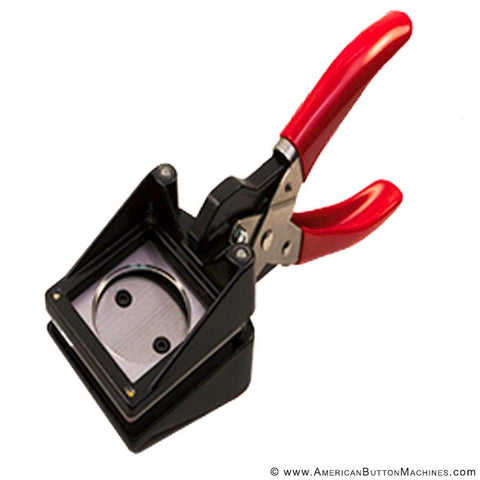
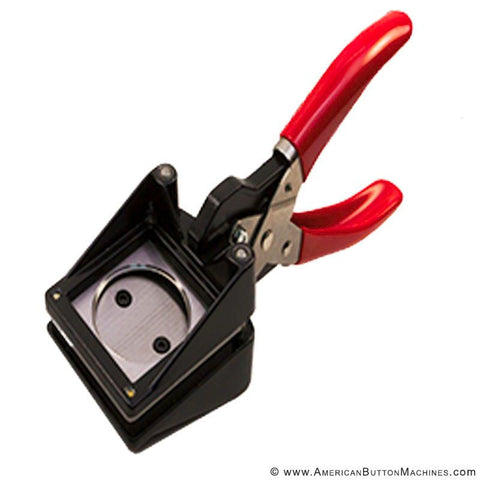
One graphic per pull, cut to the exact size for one button maker. All-metal, self-sharpening, no exposed blade, and backed by a lifetime warranty against defects. Graphic punches are made for cutting paper only, sized for standard printer paper. For photo paper, use a photo punch or the 3" or 3.5" Graphic/Photo Punch. Sizes: 1", 1.25", 1.5", 1.75", 2.25", 3" and 3.5".
Photo Punch Cutters
Built for heavier photo paper. A photo punch cuts a smaller circle than a graphic punch, so the photo sits on the face of the button and the mylar holds it in place. See the 2.25" Photo Punch and 2" Photo Punch. Making 2.25" photo buttons? Your machine must be set up for photo paper, so contact us before ordering.
Dynamo Hand-Held Punch Cutters
An all-metal hand-held punch with clear top-down centering that cuts the whole circle at once with very little force. Available in 1", 1.25" and 1.5".
Badge-a-Minit Punches
Badge-a-Minit machines use their own cut sizes, so they need their own punch. See the 2.25" Punch for Badge-a-Minit and the 3" Paper Punch for Badge-a-Minit.
Square, Rectangle and Oval Punches
Matched to ABM's shaped button makers. Graphic punches give square and rectangle buttons an open corner; a closed corner requires the Die Cutting Press and a cutting die. Shapes: 2"x2" Square, 1.75"x2.75" Rectangle, 1.75"x2.75" Oval, 2"x3" Rectangle Paper and 2"x3" Rectangle Photo.
Adjustable Circle Cutters
One cutter for every round size. The Adjustable Circle Cutter cuts any circle from 1.313" to 4", with preset stops for 1", 1.5", 2.25", 3" and 3.5" buttons. It cuts printer paper, photo paper, cardstock, fabric, acetate and thin leather, and can cut more than one layer at a time depending on thickness. The Econo Circle Cutter adjusts from 2 1/16" to 6", and the 6" Circle Cutter cuts the 6.656" graphic for 6" buttons.
Die Cutting Press and Cutting Dies
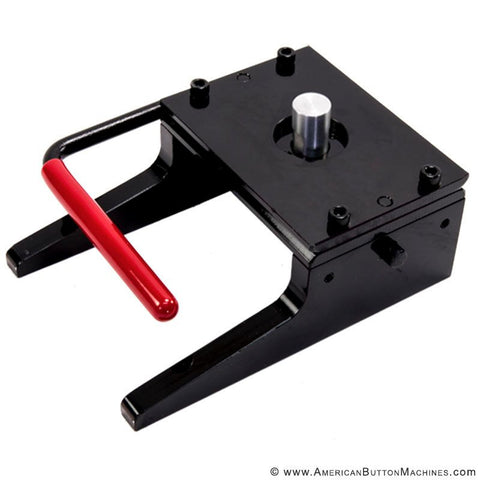
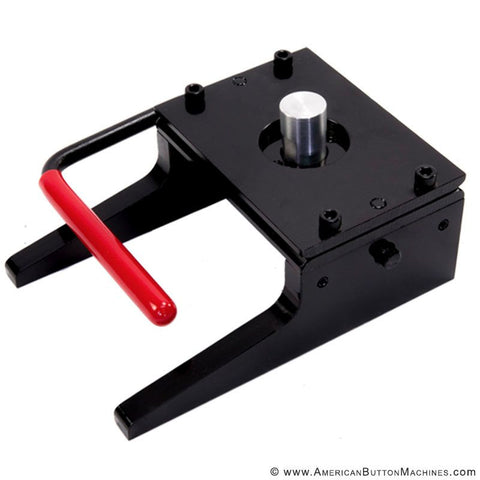
For high volume. The Die Cutting Press cuts a stack of up to 30 printed sheets in one pull. Each cutting die is machined to the graphic cut size for one ABM button maker, and you need one die per size or shape. The press is made to order, and the press and all cutting dies are non-returnable, so call us to confirm the right die before you order.
Metal Craft Punch
Not a graphic cutter. The Metal Craft Punch punches small round holes in metal shells, for ornament hangers, earring wires and LED openings.
Cut Size Chart: Button Size vs. Actual Cut ▾
| Cutter | Button Size | Actual Cut Size |
|---|---|---|
| 1" Graphic Punch / 1" Dynamo | 1" | 1.313" round |
| 1.25" Graphic Punch / 1.25" Dynamo | 1.25" | 1.629" round |
| 1.5" Graphic Punch / 1.5" Dynamo | 1.5" | 1.837" round |
| 1.75" Graphic Punch | 1.75" | 2.088" round |
| 2" Photo Punch | 2" | 2.000" round |
| 2.25" Graphic Punch | 2.25" | 2.625" round |
| 2.25" Photo Punch | 2.25" photo | 2.225" round |
| 2.25" Punch for Badge-a-Minit | 2.25" Badge-a-Minit | 2.750" round |
| 3" Graphic/Photo Punch | 3" | 3.451" round |
| 3" Paper Punch for Badge-a-Minit | 3" Badge-a-Minit | 3.377" round |
| 3.5" Graphic/Photo Punch | 3.5" | 4.000" round |
| 6" Circle Cutter | 6" | 6.656" round |
| 2"x2" Square Punch | 2"x2" | 2.717" x 2.717" |
| 1.75"x2.75" Rectangle Punch | 1.75"x2.75" | 2.390" x 3.328" |
| 1.75"x2.75" Oval Punch | 1.75"x2.75" oval | 2.293" x 3.772" |
| 2"x3" Rectangle Paper Punch | 2"x3" | 2.774" x 3.772" |
| 2"x3" Rectangle Photo Punch | 2"x3" photo | 2.894" x 3.892" |
| Adjustable Circle Cutter | 1" to 3.5" | Any circle, 1.313" to 4" |
| Econo Circle Cutter | Larger sizes | Any circle, 2 1/16" to 6" |
Cutting dies for the Die Cutting Press are machined to the same graphic cut size as the matching ABM button maker.
How to Use Each Cutter ▾
Graphic Punch
- Print your graphics and cut the sheet into strips with scissors.
- With the handle up, feed a strip between the two top plates of the punch.
- Center your design using the hole on top of the punch.
- Press the handle all the way down.
- Push up on the ejector under the punch to release the graphic. If your punch has no ejector, pop the graphic up through the center hole with your finger.
Graphic punches are made for cutting paper only.
Adjustable Circle Cutter
- Loosen the center knob about one turn, slide the wheel axle to the notch for your button size (1", 1.5", 2.25", 3" or 3.5"), and tighten the knob.
- Make a test cut on scrap paper: hold the cutter in place, press firmly on the crank knob and turn the crank slightly more than one full turn. A few passes may be needed.
- The centering template comes pre-cut for 1" buttons (1.313"). For another size, put the template back in the cutter and cut its opening with light pressure, turning the crank 10 to 20 times until the plastic is cut through. The 3.5" size does not need a template.
- Set the template over your printed graphic and turn the crank to cut.
For a size between the notches, loosen the center knob two or three turns, turn the flat side of the axle away from the locking screw, and adjust with trial cuts. When the cutting wheel gets dull, call us about replacement parts.
Die Cutting Press
- Place the cutting board on the press table and the cutting die on the board under the press ram.
- With the handle down, adjust the ram height so it just touches the top of the die.
- Raise the handle, line the die up on the cut lines of your graphic, and slide it under the ram.
- Pull the handle fully forward.
- If the paper is not cut all the way through, turn the press ram clockwise a little and pull again. About a half turn more lets it cut through a stack of up to 30 sheets.
Cutter Care and Maintenance ▾
Graphic punches need very little care: keep the punch free of dust and debris, put one drop of 3-in-One oil on the handle on both sides of the punch, and apply a little lithium grease to both ends of the shaft. Never use WD-40, water or cleaners. Step-by-step help:
- Button Maker Lubrication and Maintenance (includes graphic punch care)
- Punch Cutter Care and Maintenance (video)
- How Do I Fix My Graphic Punch Handle?
- How To Align the Dynamo Hand-Held Punch Cutter
- How To Change the Blade on an Adjustable Circle Cutter (video)
- How To Operate the Die Cutting Press (video)
Button Cutter Questions ▾
Why is the cut size bigger than the button size?
Your graphic has to wrap around the edge of the metal shell and lock under the mylar. That takes extra paper, so a cutter for a 2.25" button cuts a 2.625" circle. The cut size matches the mylar for that button size.
Can I use a craft-store circle punch or scissors?
We don't recommend it. A craft punch that cuts an exact 2.25" circle leaves the graphic too small to wrap the shell, so the edge shows a gap or slips out from under the mylar. Scissors rarely cut a perfect circle, and uneven edges cause crimping problems.
Which cutter fits my button maker?
Choose the cutter named for your machine's button size: a 1.5" machine uses a 1.5" cutter, even though it cuts 1.837". Badge-a-Minit machines need a Badge-a-Minit punch. Not sure what you have? Call (972) 985-5074.
What is the difference between a graphic punch and a photo punch?
A photo punch cuts a smaller circle for thicker photo paper, so the photo sits on the face of the button and the mylar holds it in place. A graphic punch cuts the larger circle that wraps standard printer paper around the shell.
Should I choose a punch, a circle cutter or a die cutting press?
It depends on volume and sizes. A punch cuts one graphic per pull at one size, fast and consistent. The Adjustable Circle Cutter covers every round size from 1" to 3.5" in one tool. The Die Cutting Press cuts up to 30 sheets at a time for large runs.
Can I use these cutters for something other than button making?
Yes, but read the product description carefully first. Every cutter is sized for button making, so check the actual cut size and the materials it cuts. The Adjustable Circle Cutter cuts paper, photo paper, cardstock, fabric, acetate and thin leather, and we offer a free material test: send us a sample and we will test it before you buy.
Can a graphic punch cut cardstock, vinyl or other materials?
No. Graphic punches are made for cutting paper only. For other materials, look at the Adjustable Circle Cutter, and ask about our free material test before you buy.
My circle cutter template does not fit my button size. What do I do?
The centering template comes pre-cut for 1" buttons. For another size, set the cutter to your size, put the template back in the cutter and cut its opening with light pressure, turning the crank 10 to 20 times. The 3.5" size does not need a template.
Are cutting dies returnable?
No. Cutting dies and the Die Cutting Press are non-returnable, and the press is made to order. Call (972) 985-5074 before ordering and we will confirm the right die for your button maker.
Do punch cutters need sharpening?
No. Graphic punches are self-sharpening and carry a lifetime warranty against defects. The Adjustable Circle Cutter uses a replaceable cutting wheel.
How do I care for my punch cutter?
Keep it free of dust, put one drop of 3-in-One oil on the handle on both sides, and apply a little lithium grease to both ends of the shaft. Never use WD-40, water or cleaners.
My graphic punch handle won't move. What do I do?
The handle may have slipped out of place. If you can't feed paper into the slot, or you see daylight on one side but not the other, turn and pull the handle slowly until it pops back into place. Still stuck? Call (972) 985-5074.
Why do my square or rectangle buttons have open corners?
Graphic punches cut square and rectangle graphics with an open corner. For a closed corner, cut your graphics with the Die Cutting Press and the matching cutting die.
Which cutter is best for classrooms?
The Graphic Punch. It has no exposed blade and needs very little force, which makes it the safer choice for classrooms, libraries and youth programs.